
Add the RentoLine badge to your website
Show “Listed on RentoLine” on your own website with a link to your page.
- For
- Rental companies
- Where
- Website / Web panel
- 4 min
Goal: Put the badge on your website, whatever it is made with, and check that the link works.
Steps
Step 1: In the web panel open Website Badge and choose a badge: Light or Dark, in English or Arabic. Keep the line “Find us on RentoLine” ticked.
Step 2: Under “Where is your website made?” choose your platform: Any website (HTML), WordPress, Shopify, Wix, Squarespace, Webflow, Next.js / React or Google Sites. You get the exact steps and a code made for it. Tap “Copy code”.
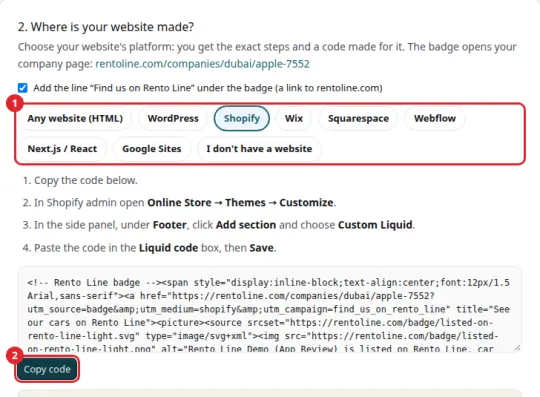
Website Badge page, section 2: the website platform tabs (Shopify selected) marked 1 and the “Copy code” button marked 2 Step 3: WordPress: Appearance → Widgets → your footer area → add a “Custom HTML” block → paste the code → Update. Block themes: Appearance → Editor → Patterns → Template parts → Footer → + → Custom HTML. Elementor: open your footer template and drag the HTML widget.
Step 4: Shopify: Online Store → Themes → Customize. In the side panel, under Footer, click Add section → Custom Liquid, paste the code in the “Liquid code” box and Save. Older themes: Edit code → sections/footer.liquid → paste just before </footer>.
Step 5: Wix: download the PNG badge from the Wix tab, add it to your footer as an Image, then click it → Link → Web Address → paste “Your badge link”, and paste the alt text in “What's in the image? Tell Google”. Publish.
Step 6: Squarespace: Edit → Edit Footer → Add Block → Code → paste → Save. Webflow: drag a Code Embed into your footer component → paste → Save & Close → Publish.
Step 7: Next.js or React: save the ready component as components/RentoLineBadge.jsx and put <RentoLineBadge /> in your footer. It uses plain <a> and <img>, not next/image, so there is nothing to add to next.config. A React app without server rendering (Vite, Create React App): paste the HTML code in index.html.
Step 8: Google Sites: Insert → Images → Upload the PNG badge, then click it → Insert link → paste your badge link, and ⋮ → Add alt text. No website at all? Choose “I don't have a website”: put your short link in your bios, WhatsApp Business and Google Business Profile.
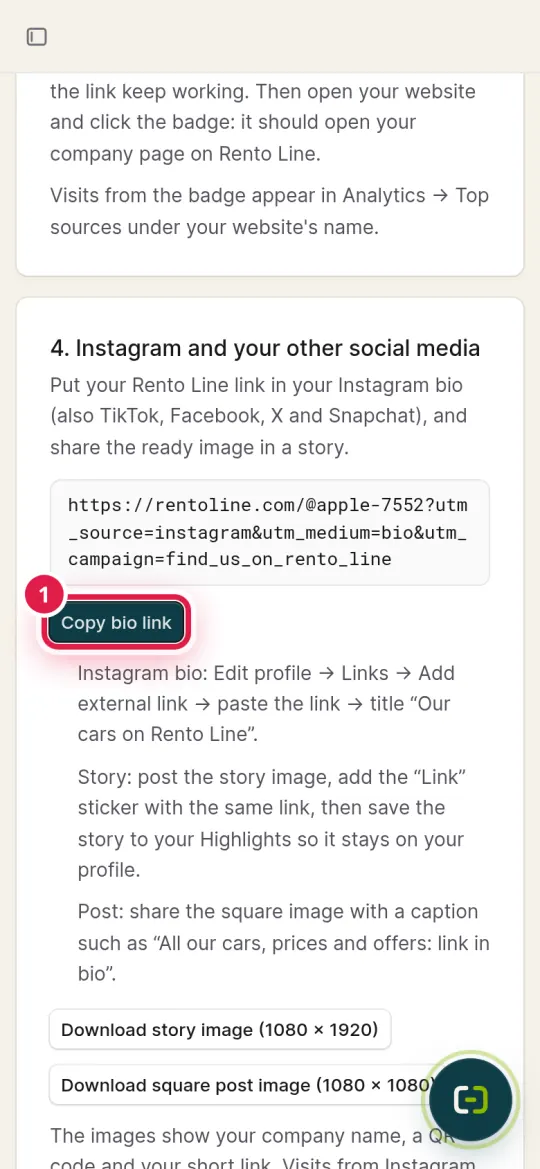
Website Badge page, section 4: the Instagram bio link with the “Copy bio link” button marked and the bio steps Step 9: Publish your website, then under “Test your badge” paste your website address and tap “Test my badge”. “Badge found ✓” means the link works and search engines can follow it; “We didn't find it yet” tells you what to check.
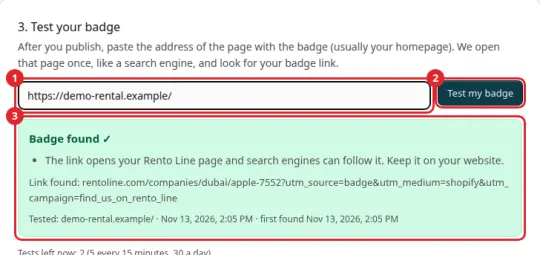
Website Badge page, section 3: the website address box marked 1, the “Test my badge” button marked 2 and the result “Badge found ✓” marked 3
Tips
- Put the badge in your footer, so it shows on every page.
- Keep the code exactly as it is: don't add rel="nofollow" and don't change the link.
- After saving, clear your website cache (WP Rocket, LiteSpeed, Cloudflare...) before you test.
- You can test 5 times every 15 minutes (30 times a day).
Questions
My website is made with Next.js, not WordPress. Does the badge work?
Yes. Choose the Next.js / React tab: you get a ready component with plain <a> and <img>, so there is nothing to configure. Put it in your footer and deploy.
My store is on Shopify. Where do I paste the code?
Online Store → Themes → Customize → under Footer, Add section → Custom Liquid. Paste the code and click Save.
Why not paste the code in Wix “Embed HTML”?
It shows the badge, but inside a frame on another domain, and search engines do not count it as a link from your website. Wix's own Image with a link counts.
Does the badge slow down my website?
No. It is one small image of a few KB and a link, with no script.
The test says “We didn't find it yet”. What now?
Check that you saved and published, clear your website cache, and test the exact page where you put the badge. If your website shows its content only with JavaScript, ask your developer to put the code in the HTML template.
Related guides
RentoLine has no online booking and no payments: you agree and pay directly with the rental company.
Still need help?
Our team answers by free call, on WhatsApp (+44 7577 563300), by email and in chat.